Quick Start
A step-by-step walkthrough — written for App Owners on less technical, no-code platforms — covering connecting your app, getting credentials, and confirming your first test response.
Last Updated: October 17, 2026
Before You Start
Make sure you already have:
- An account signed up on the KnocScore platform.
- Your Industry set.
- Your correct Employer name.
- A correct, working email address on your account.
Your email must be a real, working address — if it can't receive mail, registration of your application will fail.
1. Connect Your App
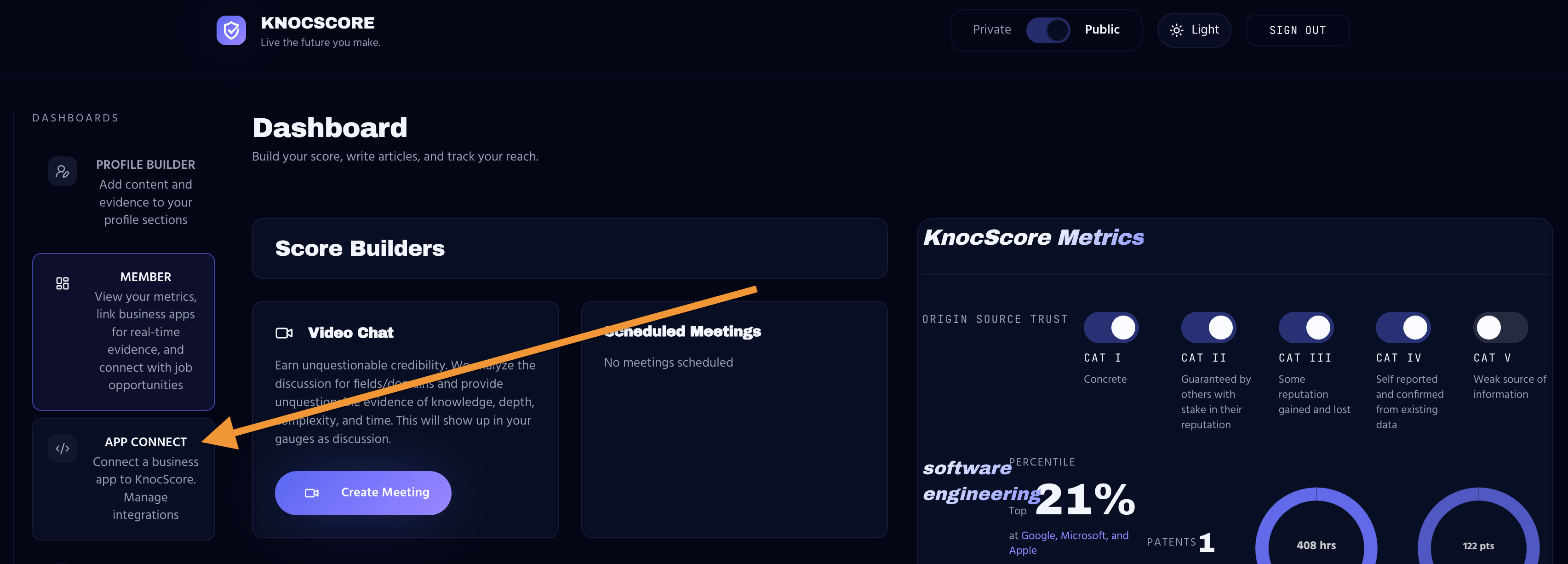
From anywhere in the Member Dashboard, click App Connect on the side bar menu.
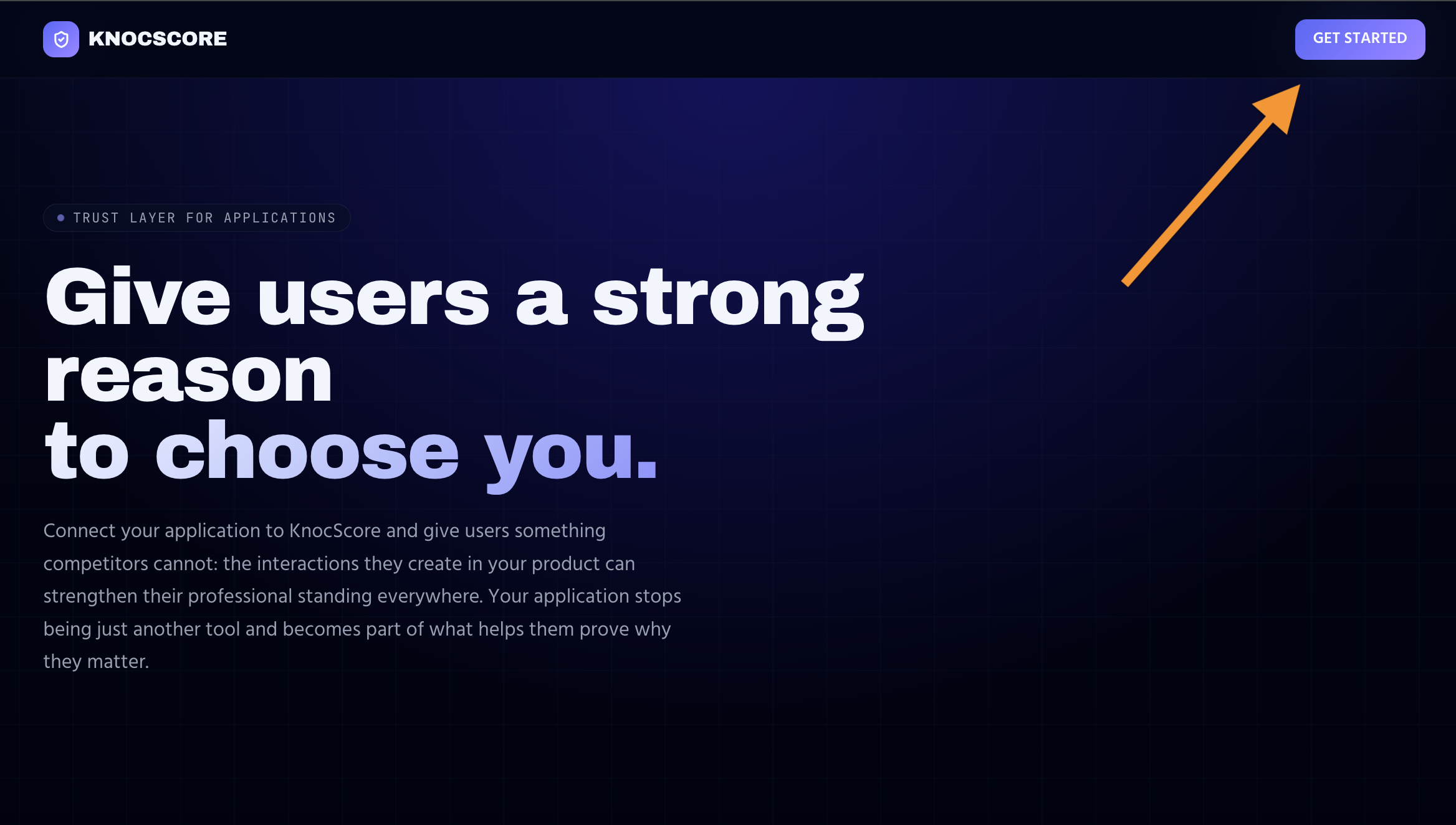
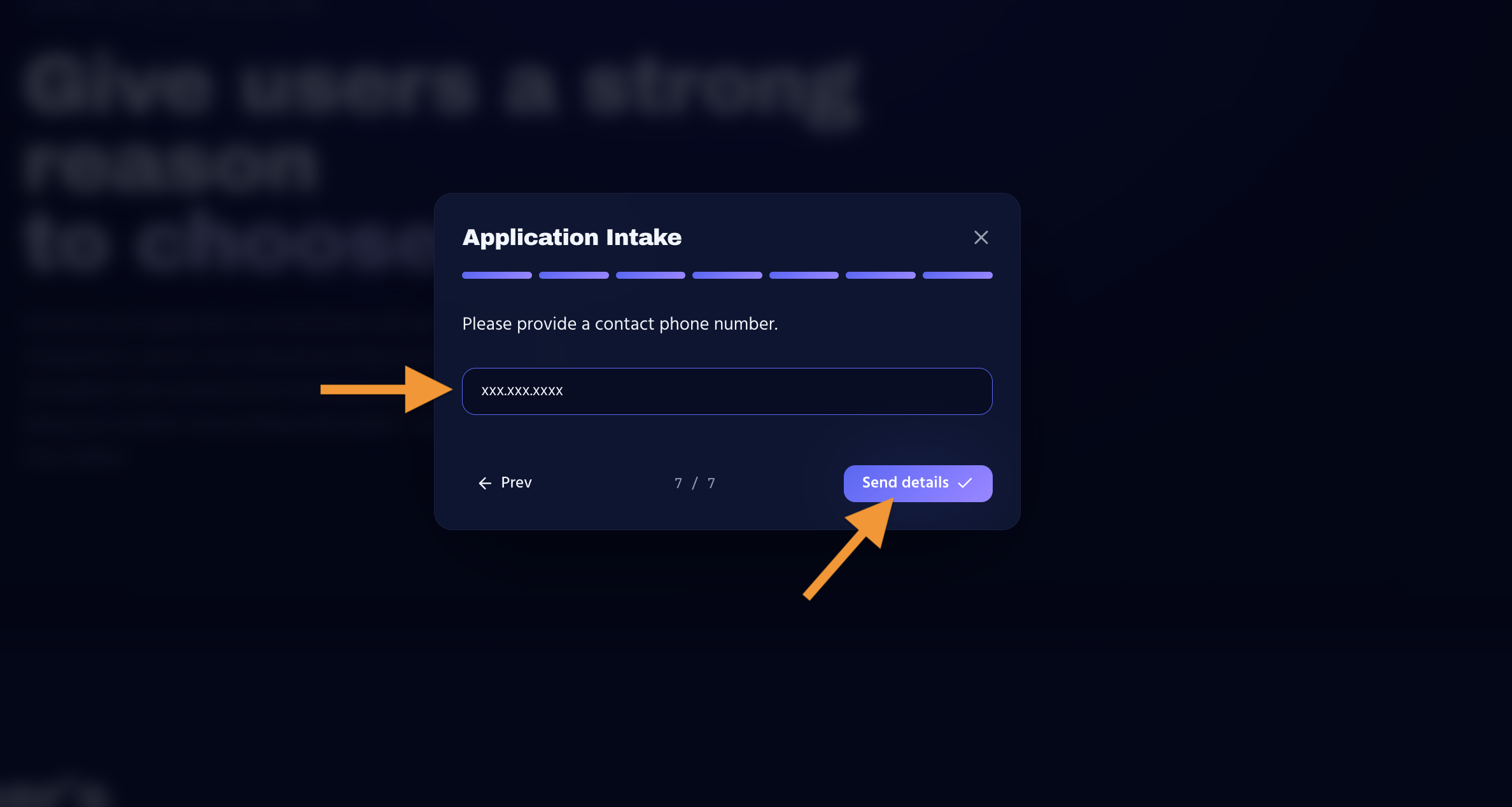
If you don't have any other applications yet, you'll be taken to the private Create a New Connection page. Press Get Started on the top right and answer the questions presented.
After your last answer, the information is sent to the server. Once the server accepts it, you'll be taken straight to your App Owner / Admin Dashboard.
Note: the email on your account must be a working email address, or testing will fail.
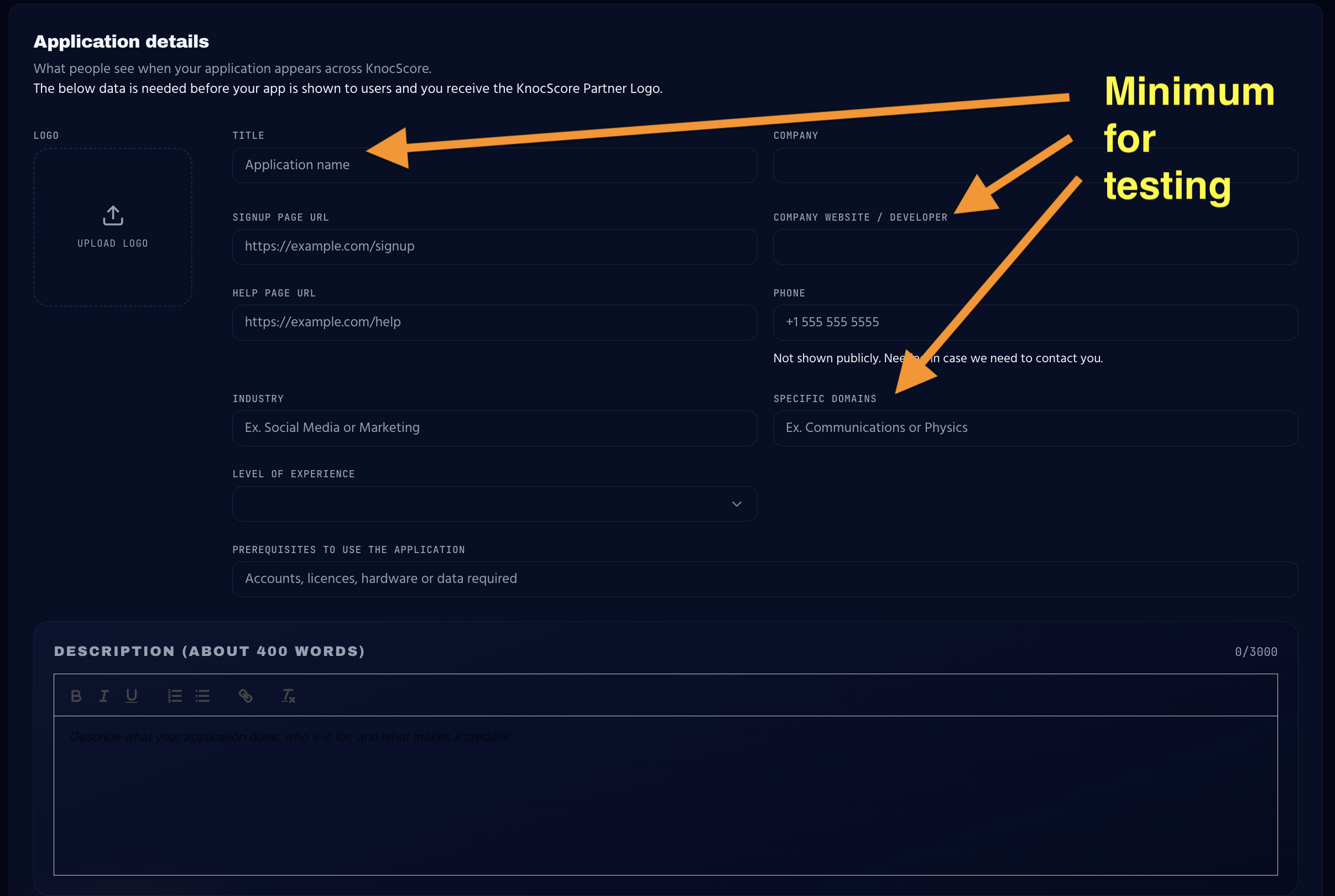
Next: In the App Owner/Admin Dashboard, complete your application's profile, including its description and logo. This information appears on the public connection page, helping users understand what your application does and what data it provides to KnocScore.
2. Find Your App-UUID and Secret
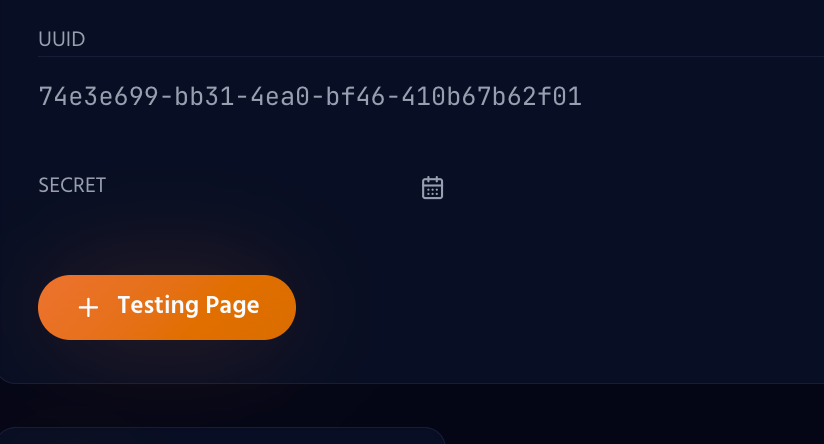
On your new Dashboard, the App-UUID and Secret are created automatically and shown alongside the application details you shared during registration. They are located just above the orange "Testing Page" button in the API Access, integration & test area.
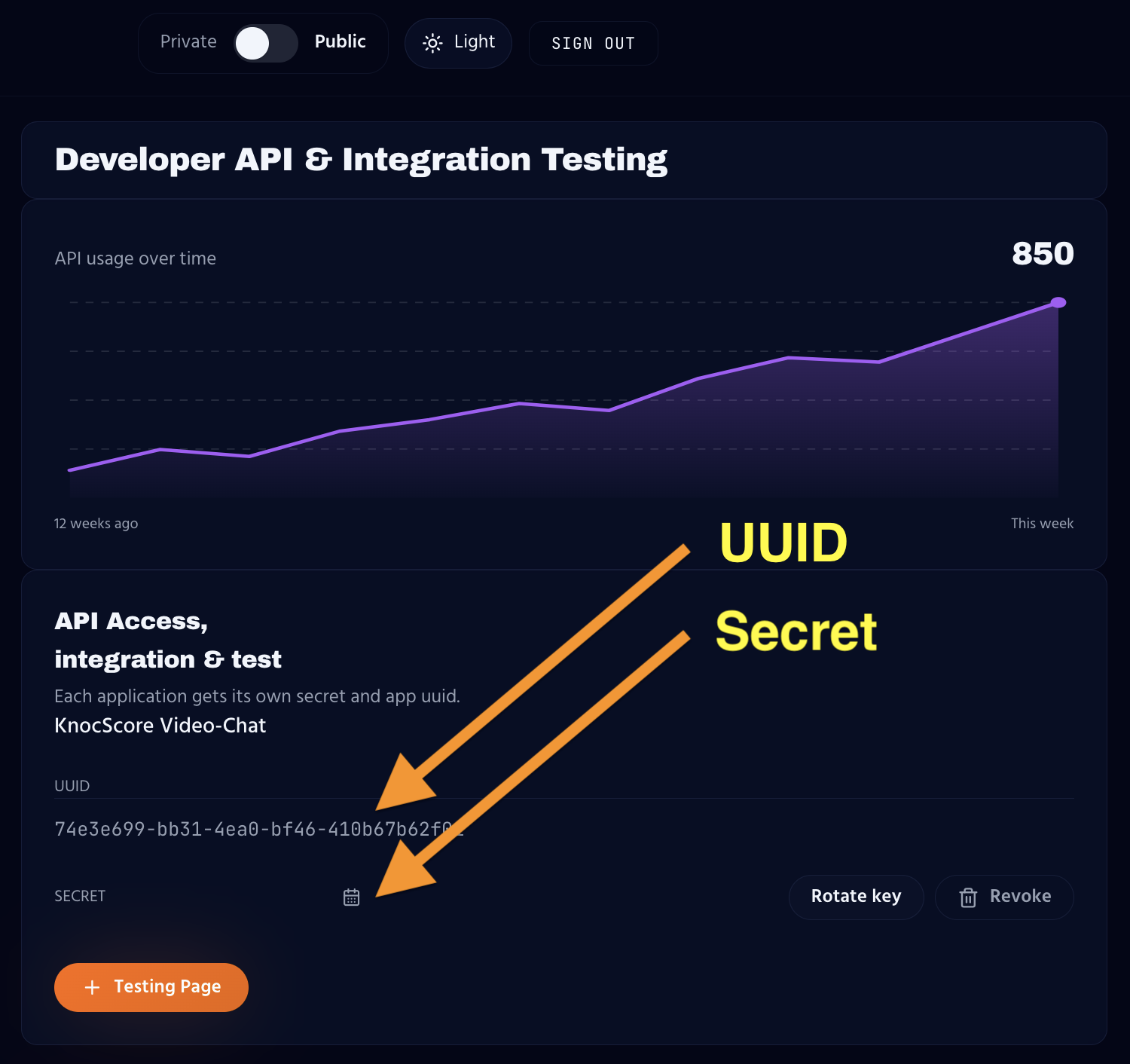
Keep your Secret private — treat it the same way you would a password.
3. Confirm Your Credentials Work
On the right side of the Dashboard, under API Access, integration & test, click the Testing Page button.
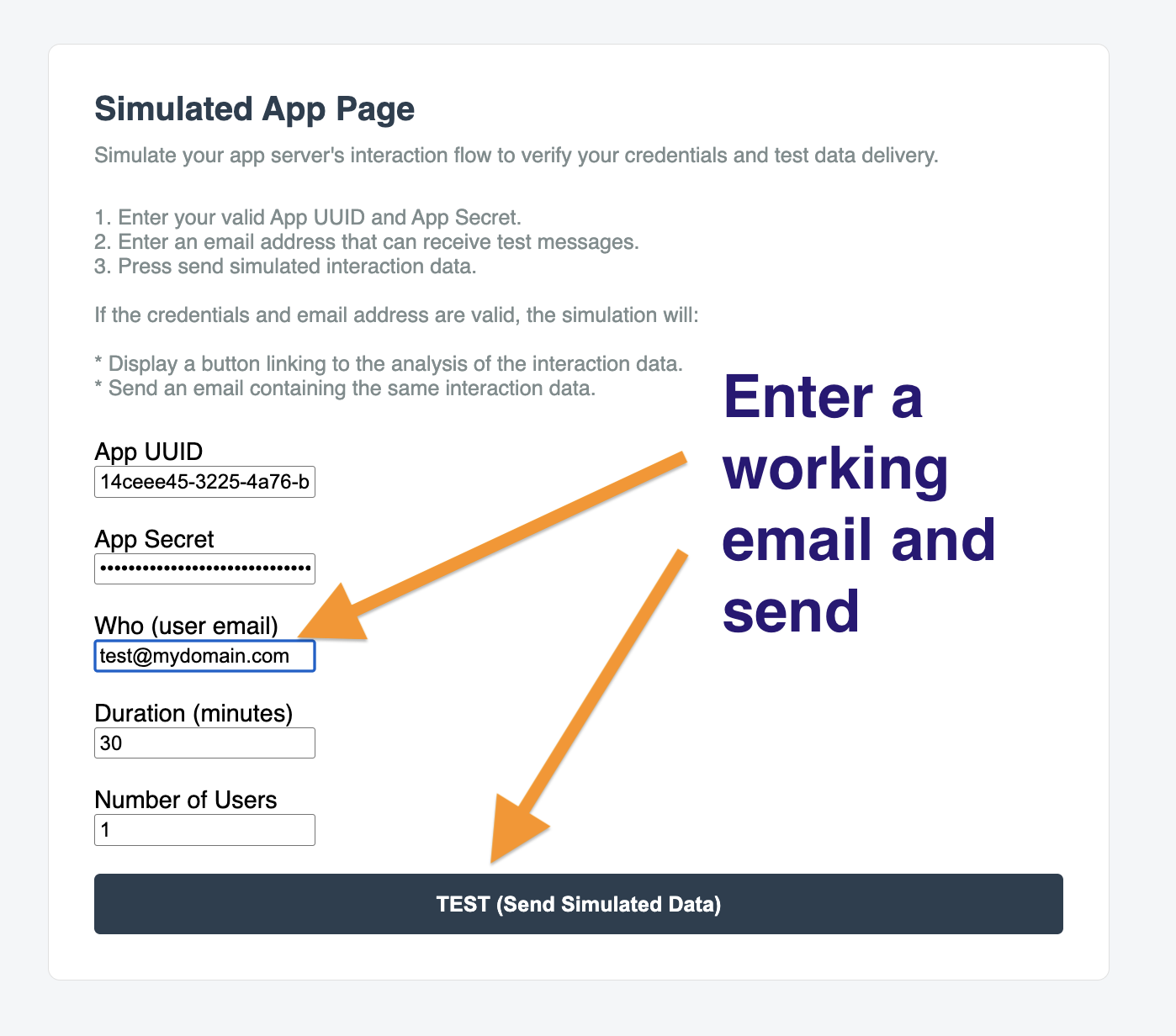
The Testing Page opens with your App-UUID and Secret already filled in. Provide a working test email address and make sure no fields are left empty, then click Test (Send simulation data).
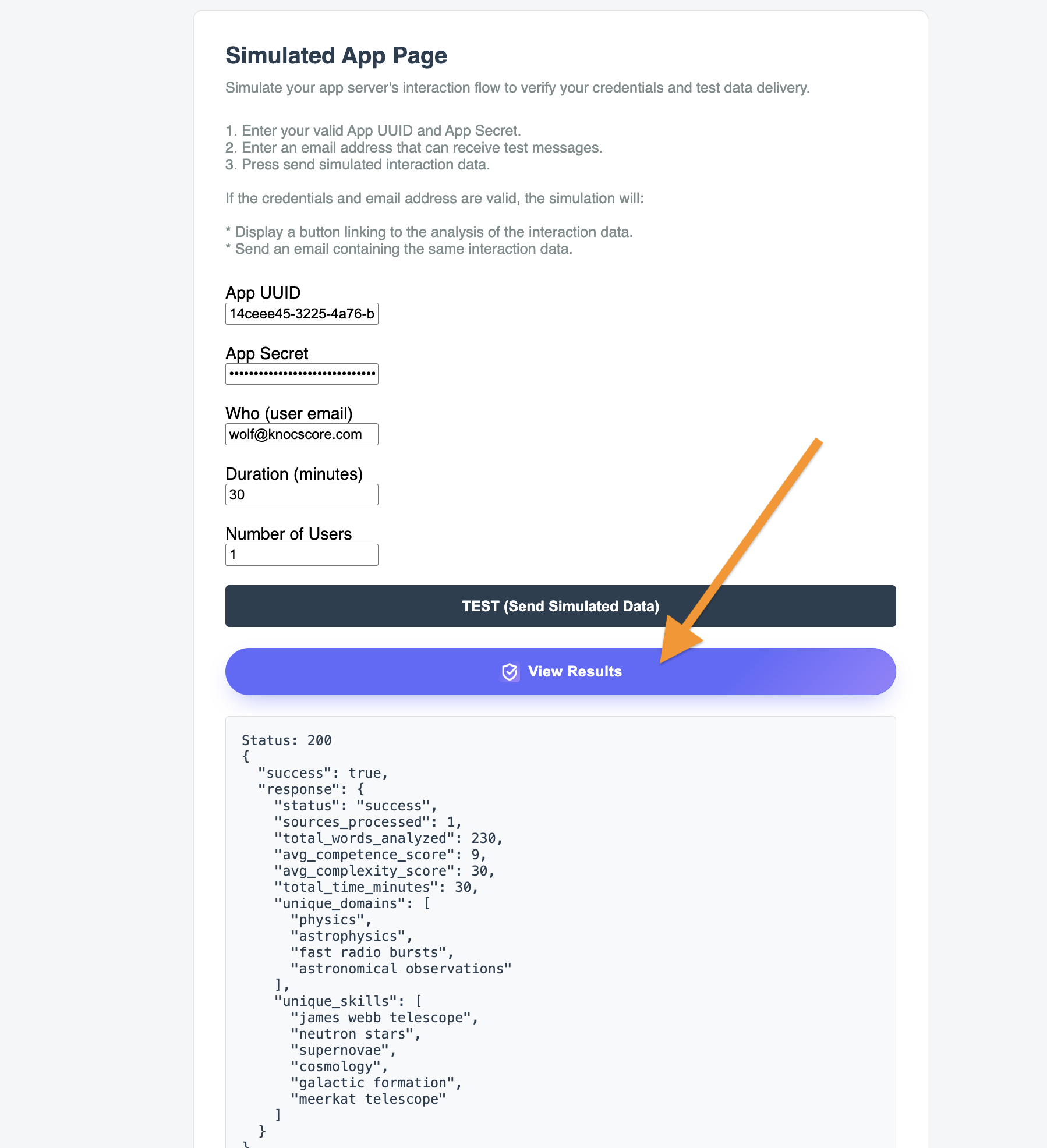
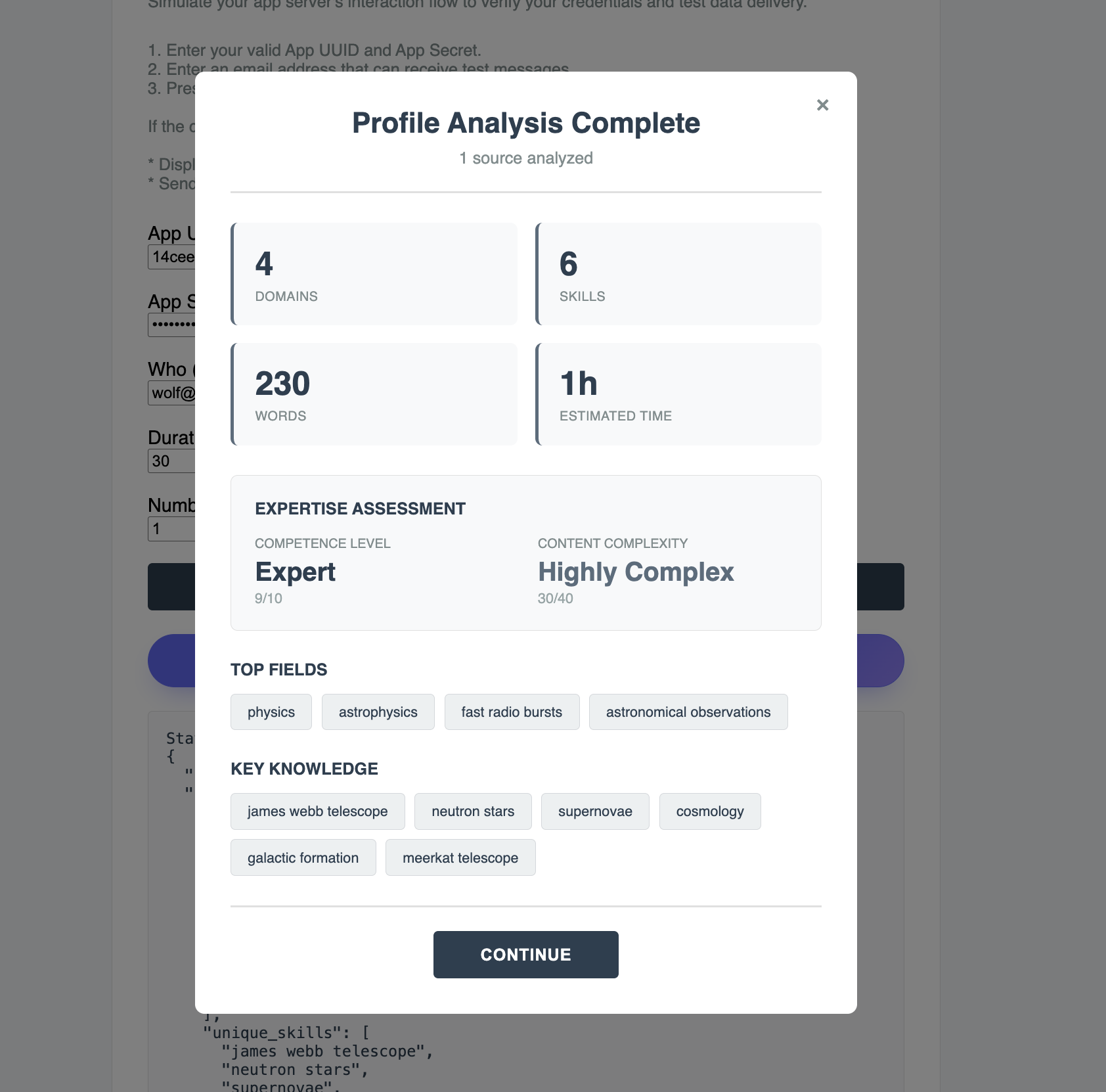
The page sends a short text "corpus" to the server for analysis. This can take several seconds to respond. When it's done, a JSON response is displayed along with a View Results button.
NOTE: The Json response is not displayed to the end user.
5. How End Users See Their Results
When your application sends an update (typically every 10–15 minutes, or at the end of a session), KnocScore responds to your server. Your server should forward that response to the end user — when it does, the See Results button appears on the page.
The resulting popup contains a link back to KnocScore, where the end user can view their combined metrics from your app. They must be registered to see all of their relevent metrics.
6. Next Steps
Continue to Sending Data to KnocScore and Receiving Analysis Results and for full endpoint and payload details.
Before publishing your application, make sure your Company and Application information is correct and complete.
Agreements
Third-Party Application Integration Agreement An API Use Agreement for KnocScore Services.